Table of Contents
Instructions #
- Click the link below to set a new password.
https://portal.infomap.co.nz//useradmin/?https://portal.infomap.co.nz/
- Click on the “Forgot Password” link
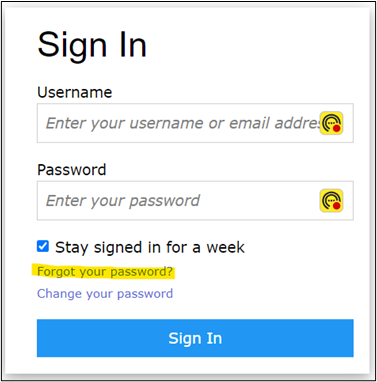
- A new window will appear. Type in your email address in to the field “Email address”
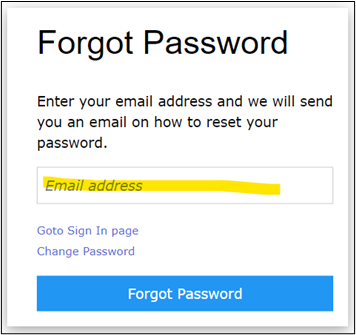
- Click the “Forgot Password” blue button. An email will be sent to you with a link to click to set a new password.
- Close the web browser window and check your emails.
- You should get an email with the subject “InfoMap – Password Reset”. If it is not in your main Inbox check your SPAM or JUNK folders.
- In the email click on the link shown below. This will open a web page where you can set a new password.

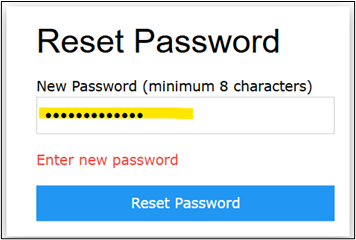
- You should see the following web page. Type in a NEW password (minimum 8 characters) as shown below then click the “Reset Password” blue button.
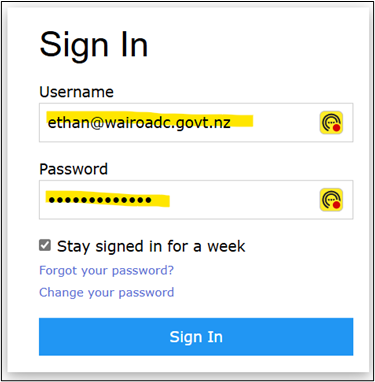
- You will be directed back to the Wairoa Maps Portal. Click the “Sign In” link and add your “Email Address” and new “Password” and click the blue “Sign In” button. If you click the “Stay signed in for a week” checkbox and accept the web browser to save your credentials, then you wont have to keep logging in.